
Claim Open Shift
Department Heads create Open Shifts using the OdessaConnect Teams schedule builder. Open Shifts are also known as unfilled shifts.
After publishing an open shift, team members are notified on their phone and can opt to place a claim on one or multiple shifts.
Open Shifts helps short-staffed departments find they coverage they need quickly.
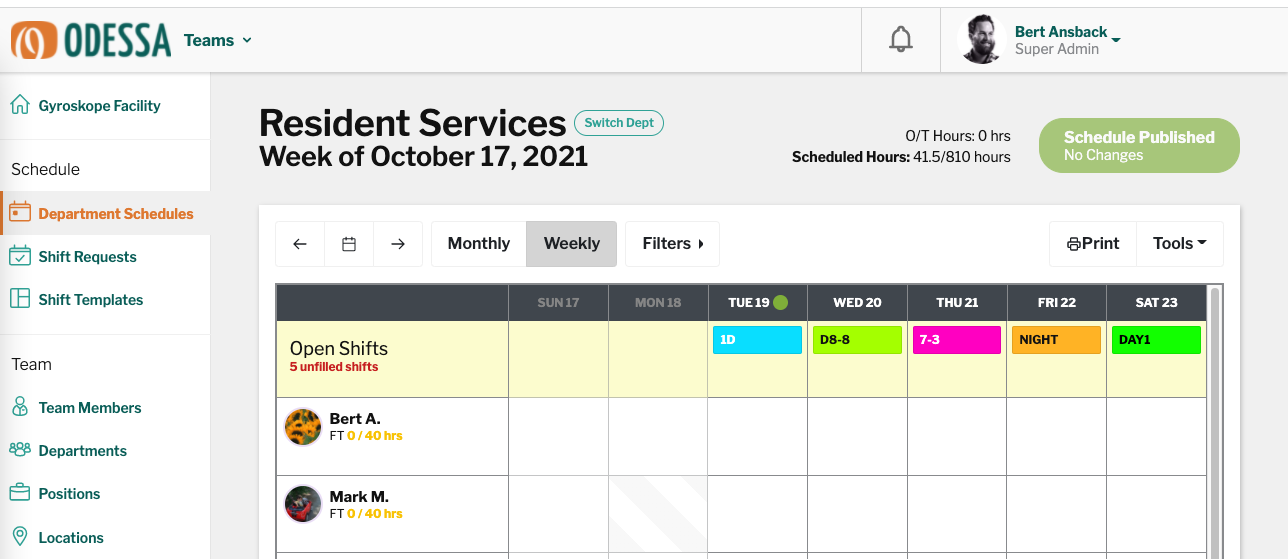
(Department Head perspective) View of the schedule builder with five open shifts published.
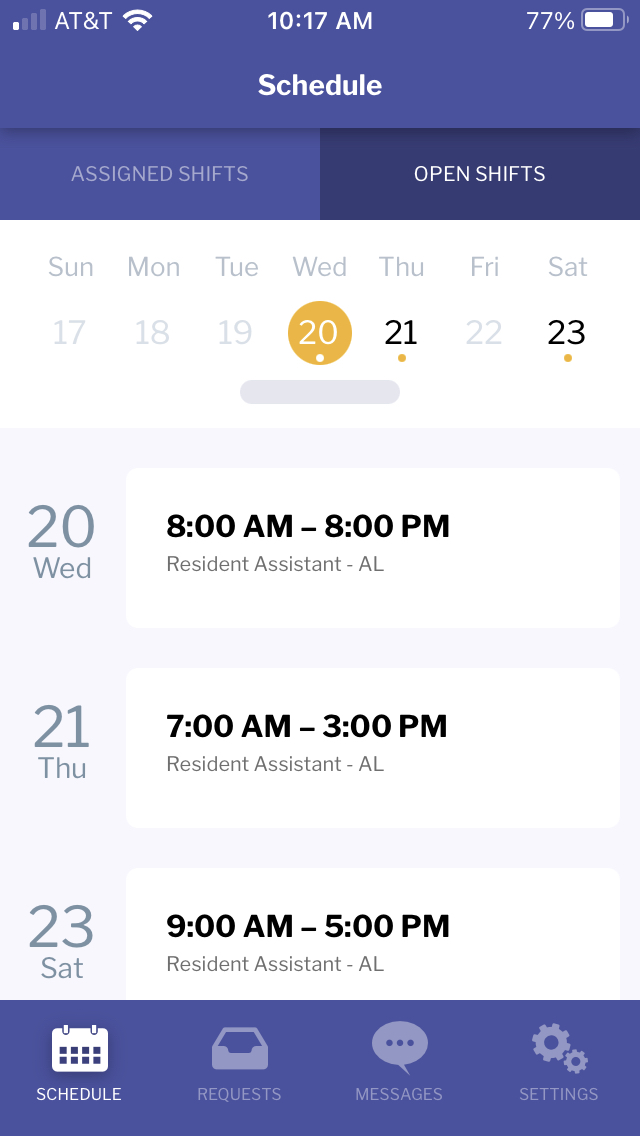
(Team Member perspective) View of the Open Shifts tab on the team member phone
After the department head publishes open shifts, team members can opt to place a claim on one or multiple open shifts.

Note: Depending on how your department or schedule is configured, the system hides certain open shifts from team members based on these parameters:
Double-booking prevention: The open shift start and end time conflicts with a previously-assigned shift time
Trained Sub-Department: The team member is not trained/qualified to work the open shift. Read more about Trained Sub-Departments.
(Team Member perspective) Viewing Open Shifts on the phone
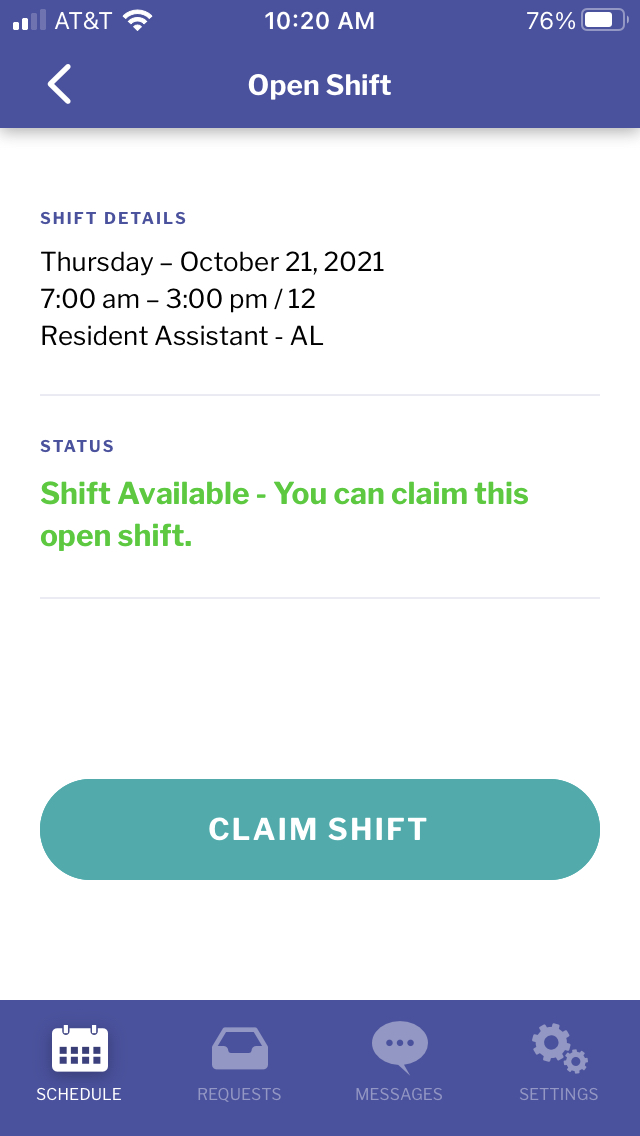
(Team Member perspective) Getting ready to claim an open shift by tapping the green button.
After the team member places a claim on an open shift, the Open Shift moves to pending admin approval. Multiple team members can place a claim on one open shift; it is up to the department head to make the final decision to approve or reject.
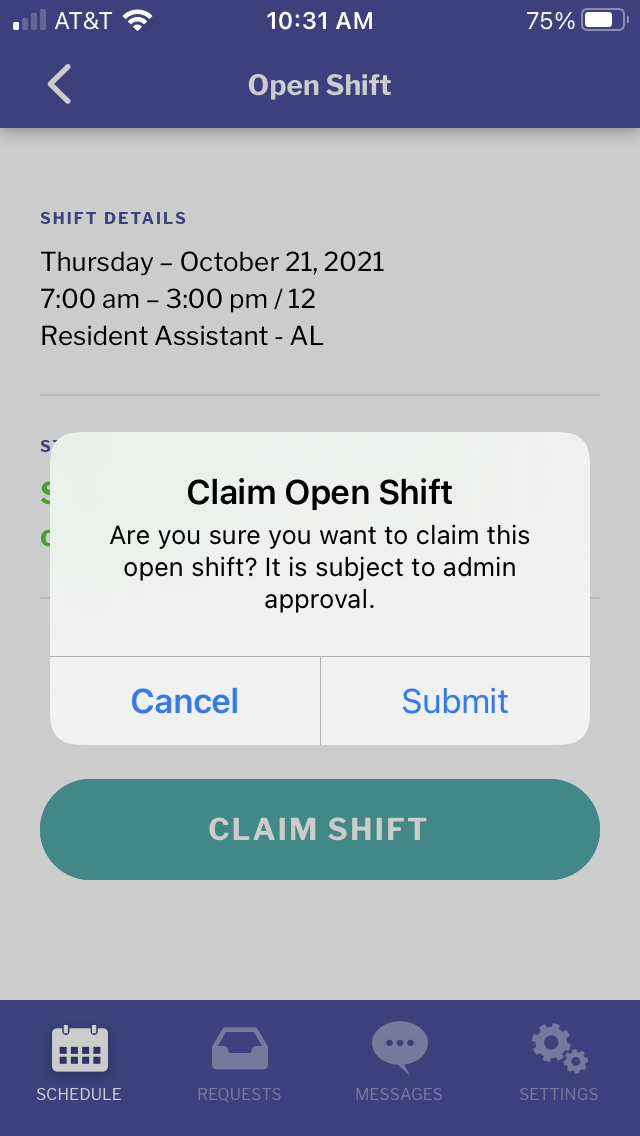
(Team Member perspective) After tapping the Claim Open Shift button.
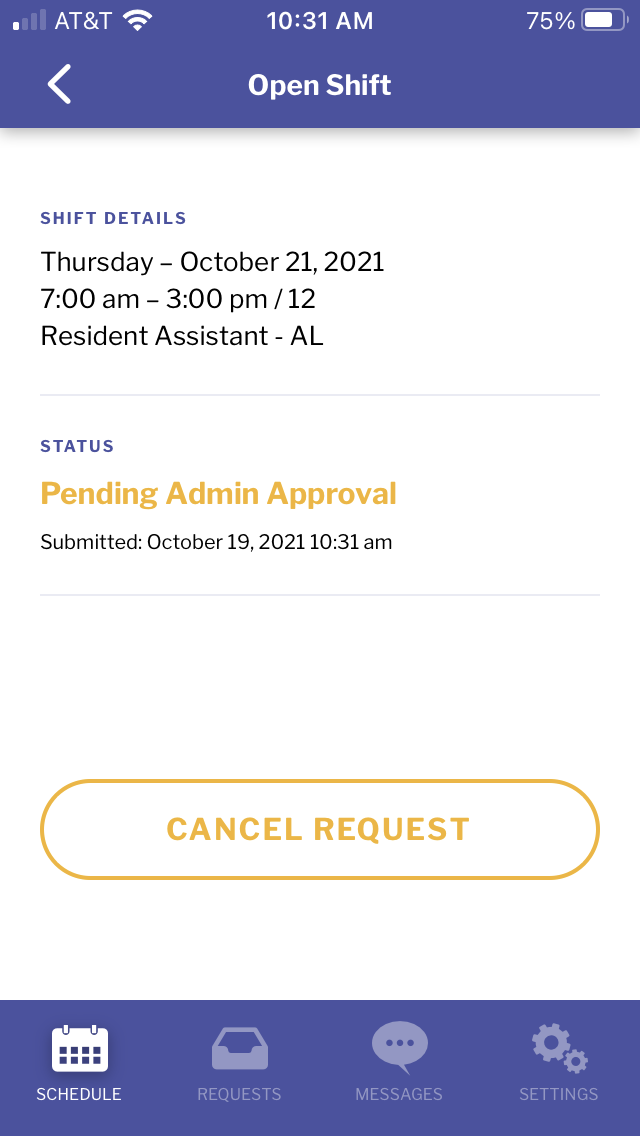
(Team Member perspective) Pending Admin Approval
The department heads are notified on the mobile phone app and website. Depending on the urgency, the department head can make a decision instantly or wait for other claims to be made.
Example
"Team Member Bert Apple wants to claim an open shift on Thursday October 21, 2021 from 7am - 3pm -- Do you approve or reject?"
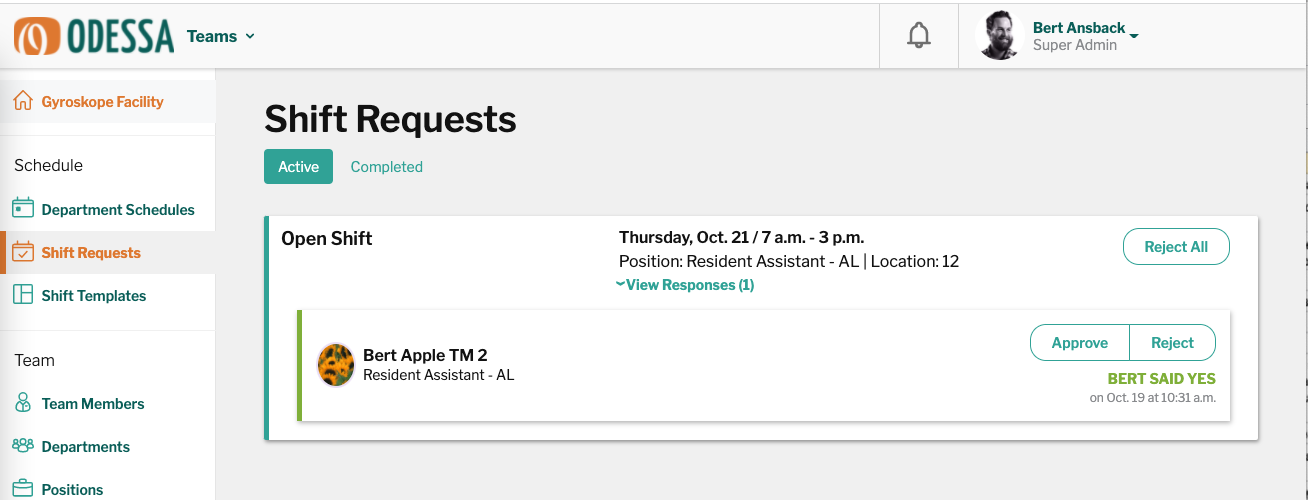
(Department Head perspective using the website) Bert Apple wants to claim an open shift.
If the department head approves, these actions are triggered automatically:
The team member that placed the claim is notified of approval
Any other team members involved are notified they were not awarded the shift
The open shift is removed from the open shifts list and assigned to the team member
The shift request leaves ‘Active’ status then moves to ‘Completed’ status on the team member’s shift request list and the department head’s shift request list
If the department head rejects an individual team member’s claim, these actions are triggered automatically:
The rejected team member is notified
The open shift remains open for other team members to place a claim
If the department head rejects the entire claim open shift request, these actions are triggered automatically
Only employees that placed a claim on the shift are notified.
The open shift is closed and removed from the open shifts list
If the Claim Open Shift has not been resolved by the shift start time, it will close automatically
Example: An open shift is posted for Friday 9-5pm. The day before, one team member places a claim. The team member’s claim open shift is now pending approval. The department head doesn’t act: they do not approve or reject the request. The shift begins. The request is automatically cancelled at the shift start time.